














 Podcasting is a powerful tool for sharing stories, reaching audiences, and building a brand in the digital landscape. This growing sector is expanding and has given rise to various tools, with one notable standout being WordPress. This important content management system, in alignment with Blubrry Podcasting’s PowerPress plugin, holds an integral role in the process of creating and managing podcasts.
Podcast enthusiasts understand the importance of selecting an optimal podcast plugin, one that seamlessly integrates with WordPress. Not all plugins are created equal, and having the right one can make a world of difference in the content and audience reach for any podcaster. Among myriad options for podcast plugins, it’s imperative to recognize the standing leader, the Blubrry PowerPress plugin.
With WordPress being the No. 1 content management system, it only stands to reason that when it comes to a podcast plugin, Blubrry is also a No. 1 choice. One such popular feature that Blubrry brings to the table is its free WordPress website with its hosting plans. This feature facilitates those aspiring podcasters who are just starting and are yet to establish a firm footing in the digital realm.

Since 2008, this robust podcasting plugin for WordPress has maintained its top position. The PowerPress plugin packs an enormous punch in terms of features, ease of use, and podcast management tools. A streamlined user interface accompanied by advanced features ensures newbies and professional podcasters alike can leverage this plugin to its maximum potential. The PowerPress plugin and its user-friendly features make podcasting a breeze.
The plug-in allows users to access features like:
- Create multiple podcasts from a single site
- Import and export abilities
- In-depth stats
- SEO tools
Despite its extensive features, PowerPress remains thorough, organized, and simple to use, offering a high degree of convenience. It’s worth noting that choosing a podcasting plugin for WordPress isn’t a choice to be made lightly. One must carefully evaluate:
- The plugin’s integration ability
- Features
- Simplicity
- Reliability
The right WordPress podcast plugin is pivotal in efficiently creating, managing and promoting podcasts. Acknowledging the undisputed leader of this sector, it’s clear why Blubrry’s PowerPress plugin is the No. 1 choice since 2008. Its user-friendliness, impressive feature set, seamless integration with WordPress, and remarkable reliability have helped it sustain its leadership, earning trust and praise from the podcasting community worldwide. Every potential or established podcaster must evaluate their plugin choice in light of these factors to ensure smooth and successful podcasting.
Blubrry continues to put forth the effort to enhance the PowerPress plugin further, seeking to deliver an even better podcasting experience for its users. So, whether you are a budding podcaster or an established name in the podcasting world, the PowerPress plugin is indeed a valuable tool that can significantly contribute to the growth and reach of your podcast.
Key Features of a WordPress Podcast Plugin
As a conscientious podcaster, ensuring that your podcast is heard and engaged with by your audience is imperative. This necessitates the use of a sturdy podcast plugin for your WordPress site. A well-rounded podcast plugin offers valuable features like seamless integration, advanced media management, SEO optimization, and distinct analytics and tracking functionalities. Permitting an effortless interworking with WordPress sites streamlines the process of creating your podcast website. This is among the most compelling features that a popular choice, like the PowerPress plugin for WordPress, provides.
A sophisticated podcast player for WordPress should provide clear audio, user-friendly controls, and customizable settings. A desirable player will also offer cross-browser and cross-device compatibility. Moreover, to assert your style as well as to ensure your audience can seamlessly connect with your brand, it should enable customization to align with your website’s aesthetics.
While your content will succeed in charming your listeners, SEO optimization is another remarkable facet of an efficient WordPress podcast plugin. The skillful optimization aids your podcast in garnering greater visibility online, thus extending your reach to a broader audience. Simultaneously, it seamlessly categorizes and organizes content, making it conveniently discoverable for your existing listeners.
Podcast SEO optimization presents:
- Episode transcripts
- Episode-specific meta tags
- Precise show notes that help improve the search engine ranking of your podcast website
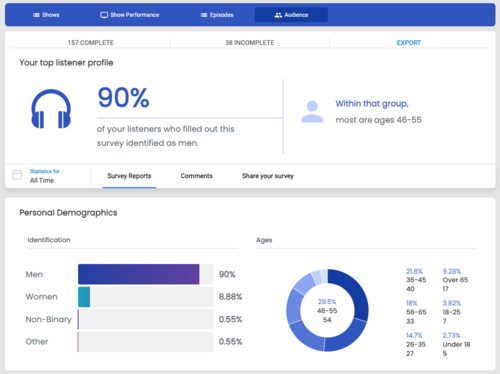
 Lastly, but important are analytics and tracking. A powerful workflow tool like a Blubrry plugin will provide a comprehensive analysis of your podcast’s performance. This feature allows you to keep track of audience engagement levels throughout your podcast. It also gives valuable insight into the audience’s listening behavior and preferences. It also evaluates which episodes receive more traffic and engagements, enabling you to understand what content resonates best with your audience. Accurate tracking helps shape future content, making it more relevant and engaging to your listeners.
In essence, the key features of a WordPress podcast site plugin play a significant role in the successful running and management of a podcast WordPress website. These robust features, including seamless integration, advanced media management, a user-friendly customizable WordPress podcast player, SEO optimization, and trustworthy analytics, combine to offer a well-rounded solution that caters to the podcast creator and their audience. These help effectively navigate and meet the varied needs and expectations that arise when creating and managing podcast content on WordPress.
Benefits of Using a WordPress Podcast Plugin
Establishing a vibrant online presence is crucial in the saturated digital landscape. Podcasting is a viable avenue for sharing insights, sparking meaningful conversations, and nurturing a loyal audience. However, starting and managing a podcast can be demanding, especially if one needs more technical know-how. This is where a WordPress podcast plugin intervenes, streamlining the process and improving the overall user experience.
 A podcast WordPress plugin such as Blubrry’s PowerPress can be pivotal in optimizing your podcasting experience. It enables you to manage your podcast directly from your WordPress website, fostering a seamless integration between your podcast content and your site. This significantly streamlines content management, allowing you more time to focus on creating engaging podcast episodes. Arguably, the best podcasting plugin for WordPress, PowerPress, is a highly versatile and feature-rich tool that continues to revolutionize the podcasting industry.
With an intuitive interface and robust functionalities, it strikes the perfect balance between sophistication and simplicity. It is built to accommodate novice and experienced podcasters seeking an all-inclusive podcast management solution integrated into their WordPress sites. PowerPress with WordPress offers many features that make it stand out as the best WordPress podcast plugin. These range from an integrated HTML5 media player that guarantees compatibility across a broad range of devices to an SEO-friendly structure that amps up your podcast’s visibility on popular search engines. Moreover, it supports multiple podcasting channels, offering you the ability to:
- Diversify your podcasting content
- Manage distinct RSS feeds
- Cater to a broad listener base
Other benefits of using a WordPress podcast plugin such as PowerPress include the automatic generation of podcast RSS feeds, essential for podcast distribution to various podcast directories. It also supports all media file types, offering you the flexibility to diversify your content and engage your audience in more compelling ways. Enacting episode-specific settings is another attribute, giving you greater control and customization for each podcast episode.
Beyond streamlining podcast management on WordPress, PowerPress enhances your podcast’s discoverability. It incorporates Apple Podcasts among others, allowing your podcast to gain visibility on these popular platforms.
Using a WordPress podcast plugin like PowerPress offers an effortless, integrated podcast management experience. It brings all of your podcasting needs into a single platform, eliminates the complexity of the equation, and allows your content to reach a wider audience. Whether you’re just starting or you’re already an established podcaster, PowerPress is a thoughtful, comprehensive tool that caters to all your podcasting needs.