PODCAST PLATFORM
Publish, Analyze, Grow...
Blubrry’s podcast platform makes podcasting easier with our straightforward publishing platform, live customer support, stress-free migration and insightful statistics.
Start Podcasting



Podcast Services
Podcast Hosting
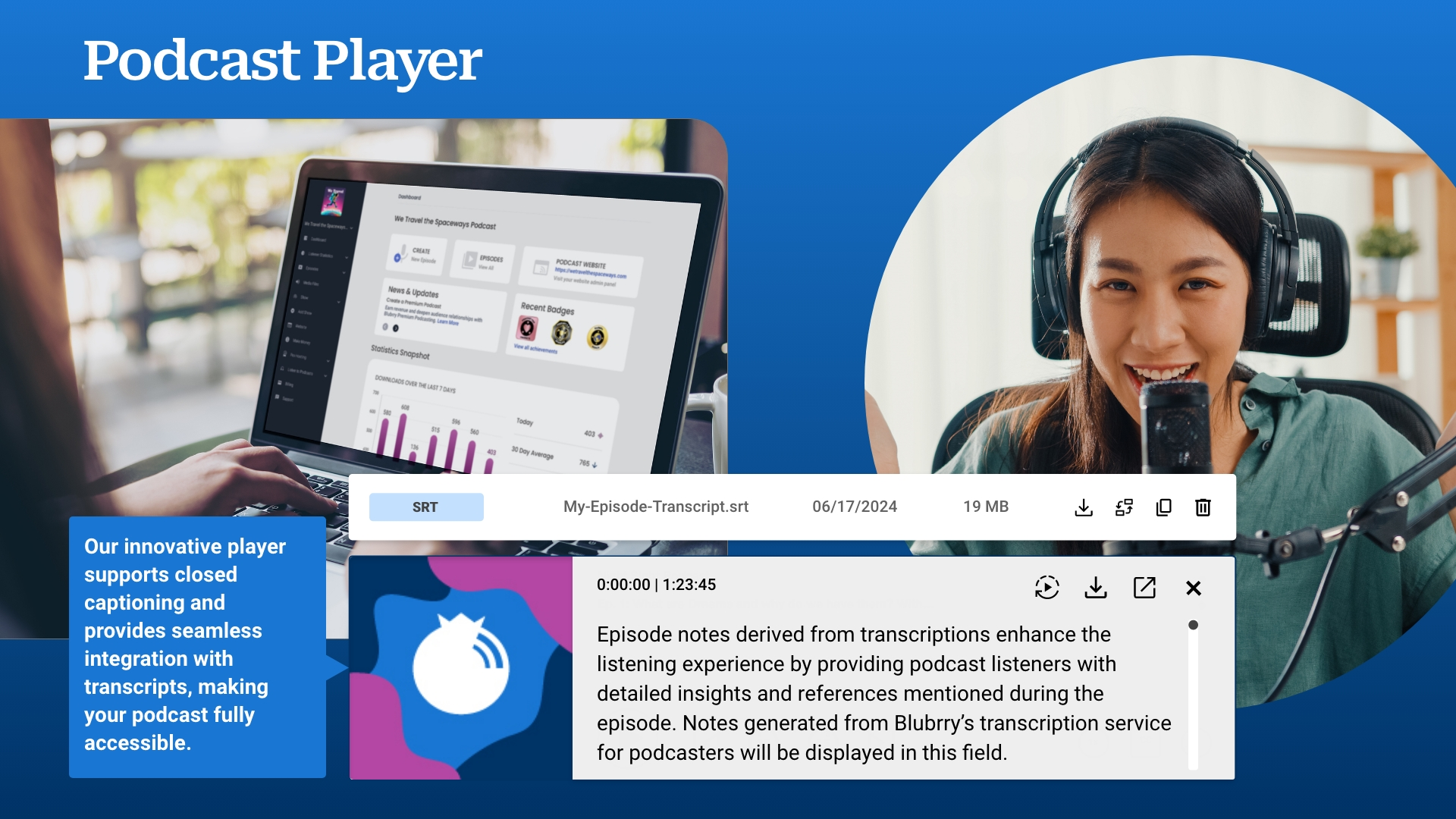
Blubrry is a full-service podcast host, from the individual podcaster to professional businesses and networks.
Hosting Plans & Features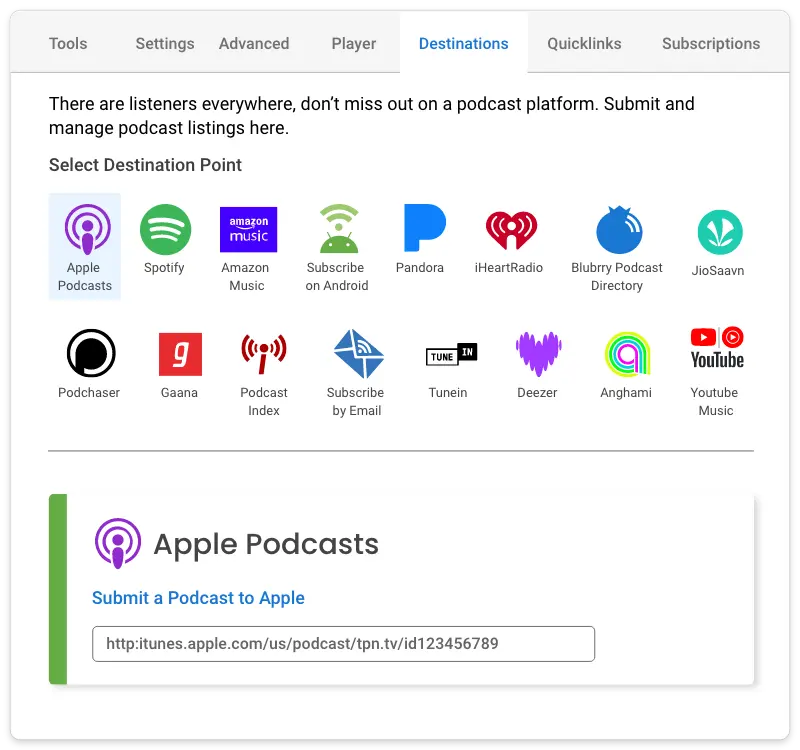
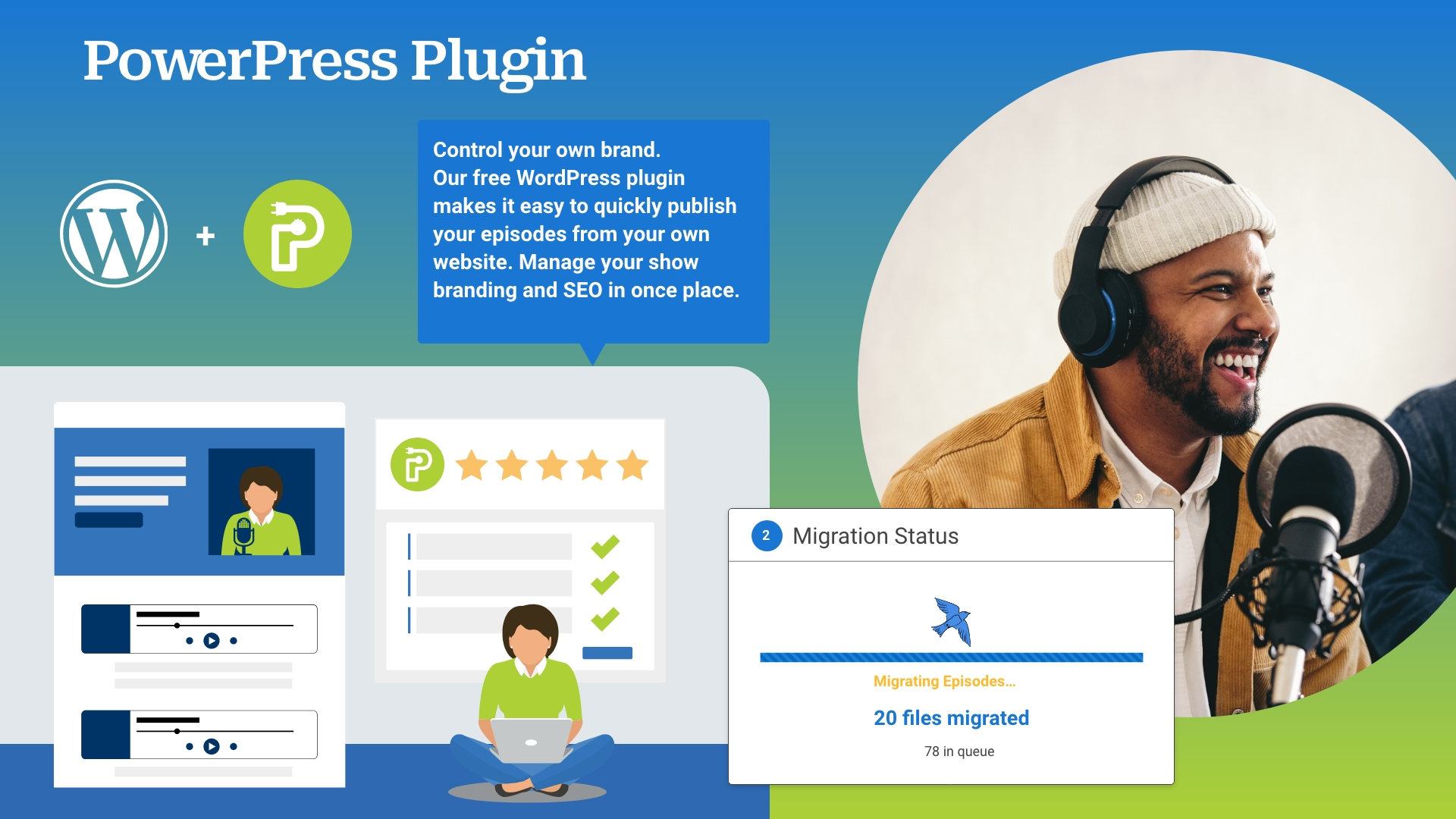
PowerPress Plugin
WordPress user? Our podcast publishing plugin, PowerPress, works with Blubrry hosting to power your podcast.
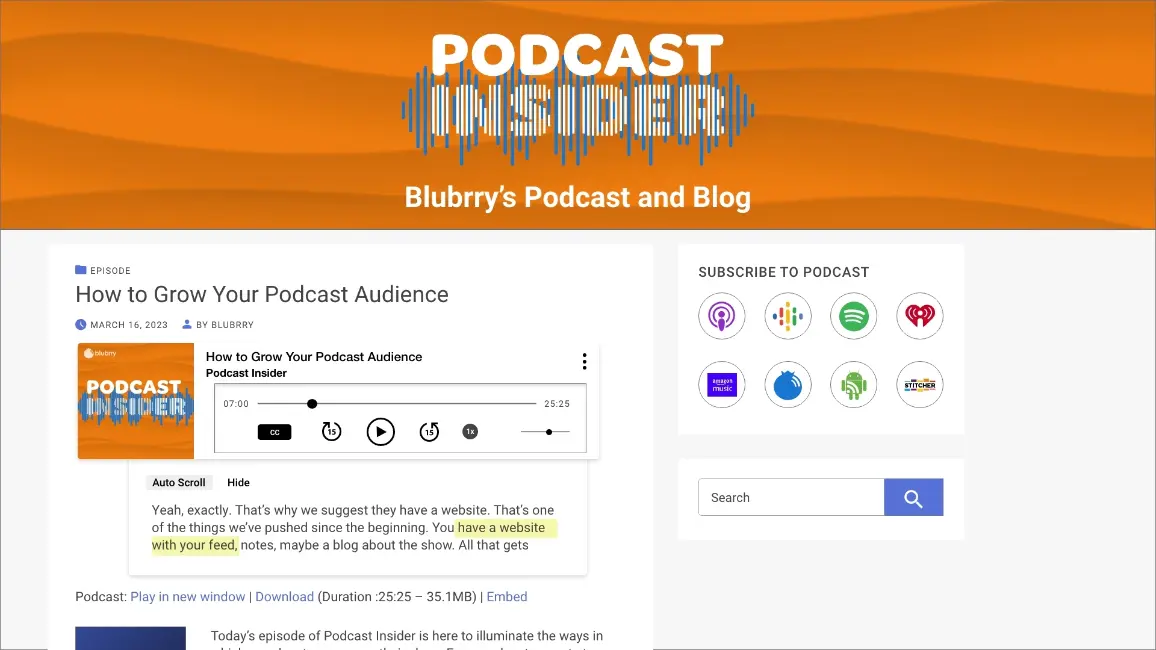
Podcast Website
Don’t have a website? We provide all hosting customers with a free WordPress website.
Professional Podcast Hosting
Tools for networks, businesses and advanced creators including dynamic ad insertion.
Private Podcasting
Create your podcast for authenticated users, accessing your show through iOS, Android and a private web app.
Podcast Statistics
Our podcast statistics are IAB V2.1 certified compliant
Begin Analyzing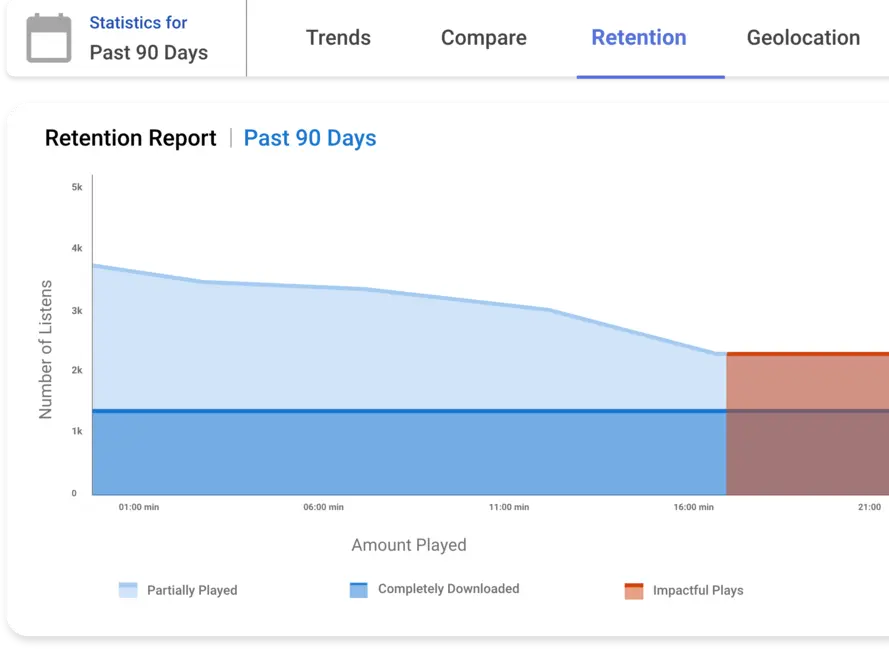
Podcast Statistics
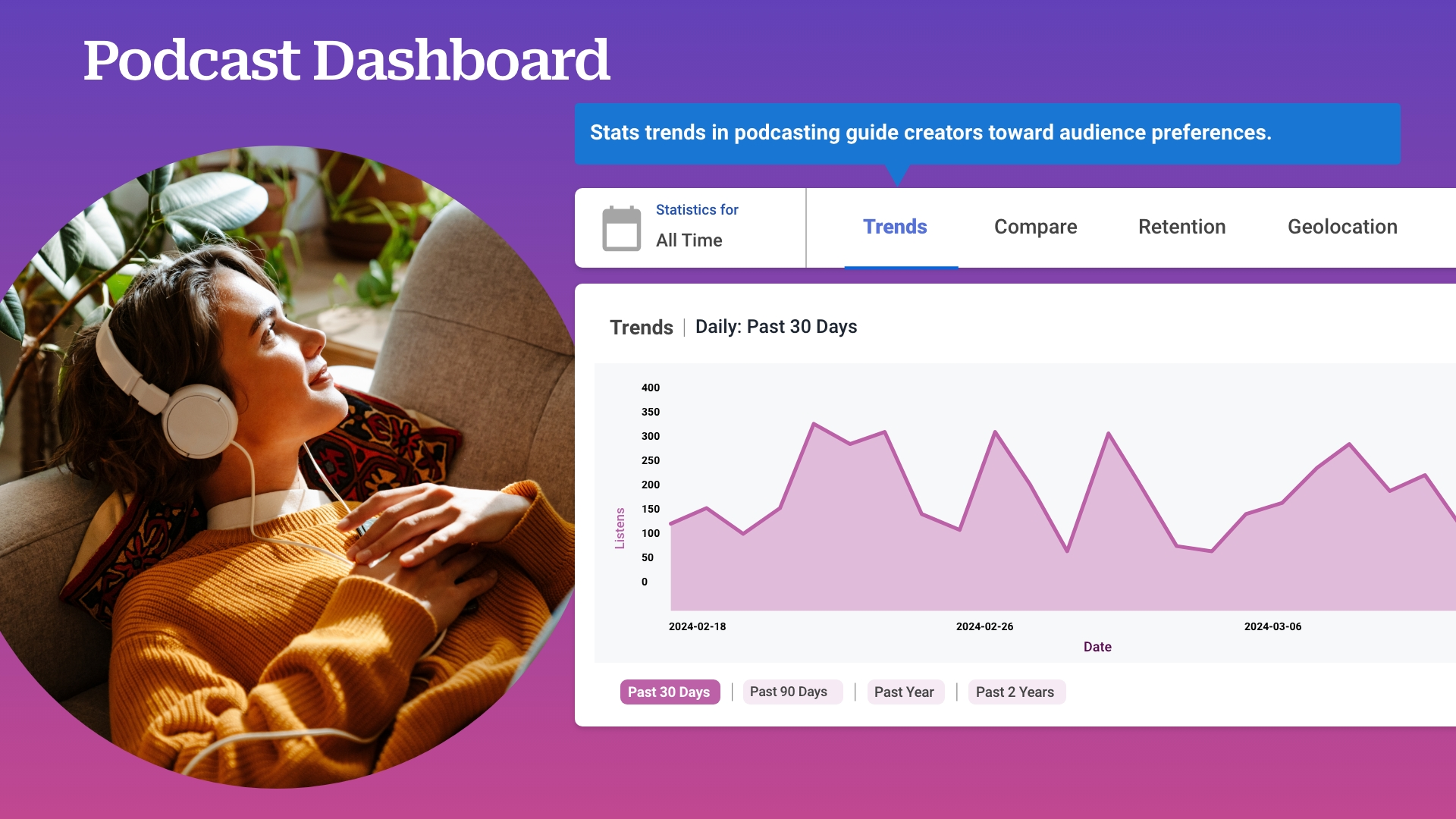
Answering all of your audience questions, providing podcast analytics that you can use to grow your show. Review your listener trends, audience retention, geo-locations and more.
Audience Surveys
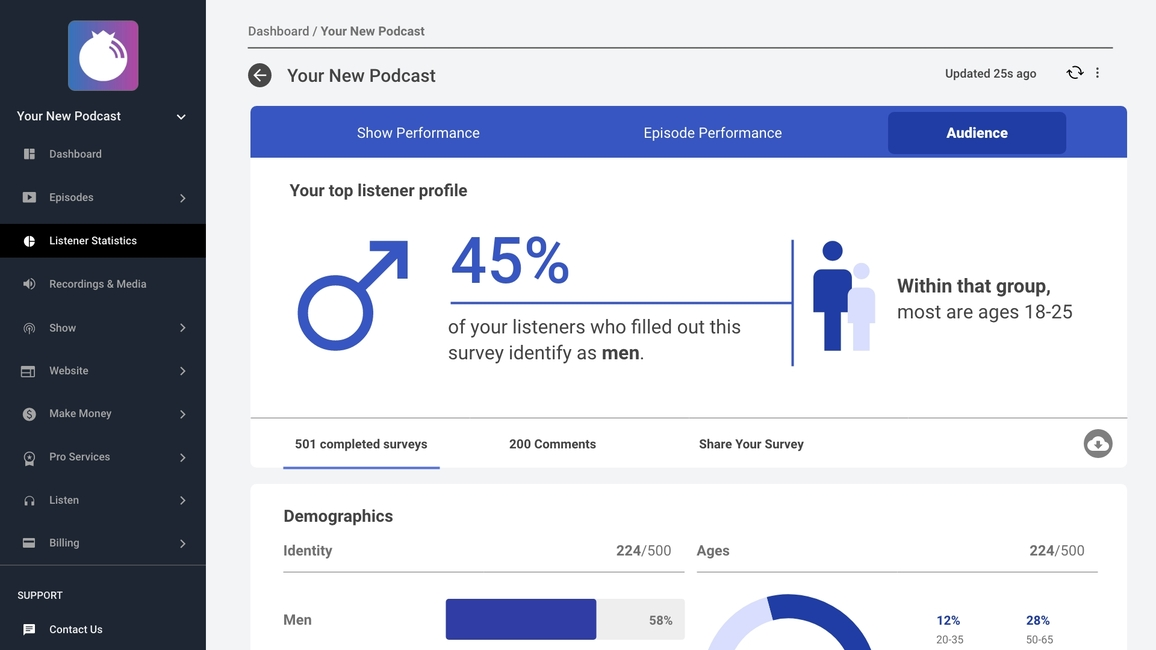
Build a comprehensive picture of your audience based on demographics directly from your listeners.
Podcast Growth
Dynamic Ad Insertion
Manage pre-, mid- and post-roll advertising/promotion campaigns using modern technology.
Programmatic Ads
Earn money immediately with ads programmatically delivered to your audience.
Media Kit
All podcast hosting customers can configure a free podcast media kit that updates daily with new audience data. Learn how to create your media kit here.
QuickLinks
Effectively manage all of your podcast-related links with your QuickLinks landing page. Available to all hosting customers, learn more here.
Thrive Bundle
Enhanced tools and services of our existing products for our Advanced Hosting customers. Learn more about the Thrive Bundle here.
Pro-Production
Podcast professionals guide you in the launch, publishing and social promotion of your show.
-
I’ve been using Blubrry for a decade now for my podcast, and they’ve always been amazingly helpful with anything question or problems that I’ve ever had. Also, they keep adding features and making everyhiting better and better. They’re great!”

Natty Bumpercar
-
Pre-sales support designed to help you, not sell you. Quick and compassionate tech support. And seeing the founder in podcasting forums online and att events, I know that Blubrry is there advocating for podcasters.”

The Greylock Glass
Blubrry Blog & Podcast

April 22, 2024
Blubrry
To say that Blubrry Podcasting is the host with the most is an understatement. We know, and hopefully, you know too that our hosting options… View
April 22, 2024
Blubrry
To say that Blubrry Podcasting is the host with the most is an understatement. We know, and hopefully, you know too that our hosting options… View

April 18, 2024
Episode
Sharing practical tips for landing a job in podcasting Whether you’re a seasoned audio engineer or a passionate storyteller looking to break into the industry,… View
April 18, 2024
Episode
Sharing practical tips for landing a job in podcasting Whether you’re a seasoned audio engineer or a passionate storyteller looking to break into the industry,… View

April 15, 2024
Features
Podcasting success lies in its evolution Gen Z has been getting a pretty bad rap from, well, everyone for habits that their elders just can’t… View
April 15, 2024
Features
Podcasting success lies in its evolution Gen Z has been getting a pretty bad rap from, well, everyone for habits that their elders just can’t… View

MONTHLY
NEWSLETTER
MONTHLY
NEWSLETTER
Keep on top of the latest advancements, trends and news at Blubrry. Sign up for our newsletter now.


Podcast Support
Reach the Blubrry support team seven days a week via email or phone.
Contact Us
Reach us about any question with our contact form.
Support
Submit a technical support ticket.
Phone
1-877-729-8642 M-F 9-5 EST
Documentation
Full-service documentation.